Portal Guide
Main content blocks
How to use the learning portal
Navigate this page
- Browsing the library
- Booking live training or eLearning
- Accessing your certificates and in progress training
Browsing the library
You can access the library by selecting “Learning Library” from the top navigation bar.

Once in the library, you can use the search tools on the right-hand side to find relevant courses. These options include:
- Search bar: Type the course name or keywords related to the topic.
- Filters: Narrow down results using course tags or categories.
- Additional Fields:
- Course Label – filter by course type (in-person, webinar, eLearning, or downloadable resource).
- Filter by estimated duration or course location.
- Event date range: Browse courses scheduled within a selected timeframe.
You can also see upcoming training by selecting “Training Calendar” from the top navigation bar.

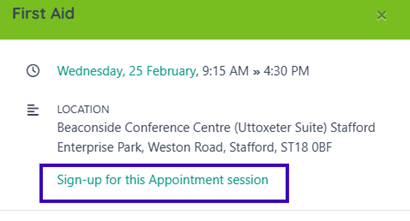
In the Training Calendar, click on any date to view available sessions. Select “Sign-up for this appointment session” to begin the booking process.
Booking live training or eLearning
To book a live training date, first select the course you want to attend from either the Learning Library or the Training Calendar.
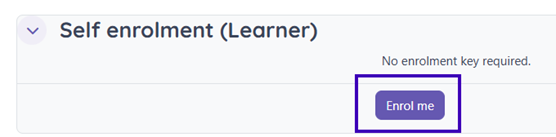
At the bottom of the course information page, select “Enrol me.” (as shown below):
Once enrolled, if the course is eLearning, you will need to complete each tile in order to proceed to your certificate:

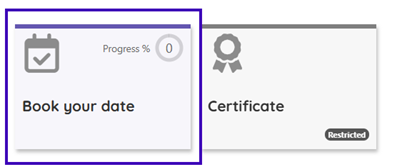
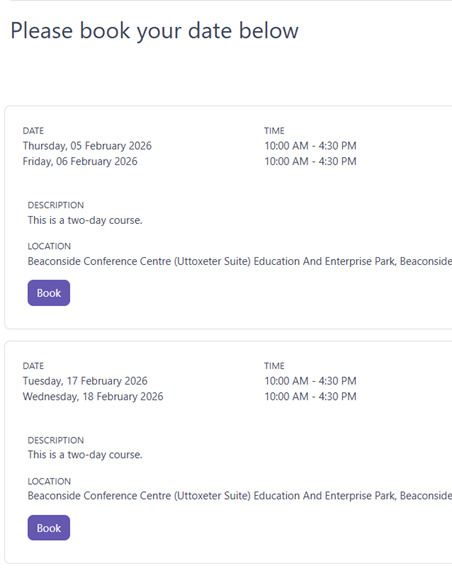
Once enrolled, if the course has live training, choose “Book your date” to view the available sessions (see image below):
Select “Book” next to your preferred date to secure your place. You will receive an email confirmation after booking (example shown below):
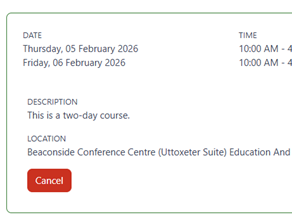
If you are already booked onto a session, a button will appear allowing you to cancel your booking (as shown below):
Accessing your certificates and in progress training
To access your ongoing training or download your certificates, select “Dashboard” from the top navigation bar.

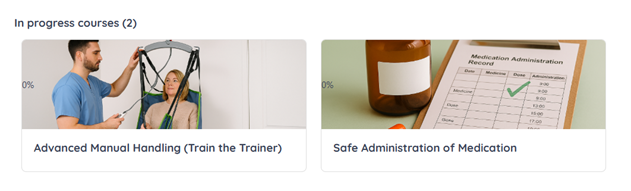
On your dashboard, you can see your In‑progress courses.
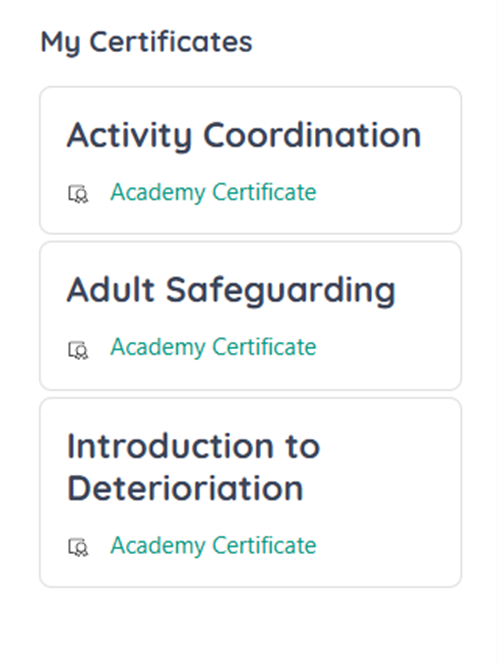
You can also view and download any certificates you’ve been awarded using the panel on the right-hand side of the screen. Certificates are also emailed to you automatically when you complete a course.